
How It Works
Find it. Save it. Come back when you’re ready.
Cue is built around one habit: when something matters, give it somewhere to go. On iPhone and Android, folders, reminders, and an account are optional. The web app and the browser extension need a Cue account.
01
Save from the apps you already use.
Wherever you find it, give it somewhere to go. Cue works with your phone’s built-in share menu, so anything that can share a link, some text, or a photo can share to Cue.
In Chrome, Edge, or Firefox, the Cue extension saves the page you are on, text you select, or a link you choose. It does not take a screenshot.
- Safari
- Chrome
- Messages
- TikTok
- Spotify
- Photos



02
Share → Cue → Done.
Tap Share, choose Cue, tap Save. Capture first; everything else is optional. Cue saves to your phone instantly — no waiting on a connection — and returns you to what you were doing.
Want to add context? There’s a note field, an optional folder, and the reminder chips. None of them are required.
On a computer, open Cue from the toolbar, or use Save page to Cue, Save selection to Cue, or Save link to Cue. Choose a time and an optional folder, then save. The extension has no note field. Its time choices are No reminder, In 1 hour, Tonight, Tomorrow, and Date and time. You need to be signed in.
 Cue


03
Everything lands together.
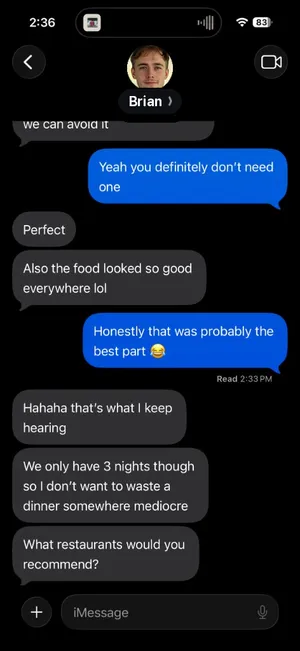
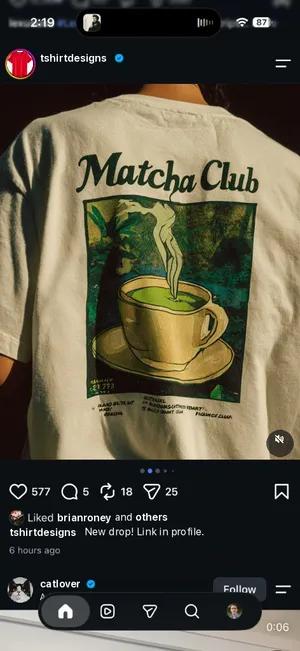
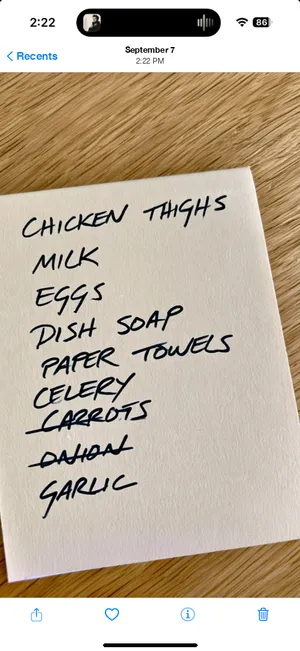
One place, no matter where it started. Articles next to messages next to screenshots, each with a title, a preview, and a source label — Instagram, Reddit, Messages, a website — so you can tell them apart at a glance.

What restaurants would you recommend?

A Local's Guide to San Francisco

Deadlift checklist
Shopping list

Rearview Summer
04
Organize when you want.
Simple when you want it. Structured when you need it. Search across everything you’ve saved. Filter by status or by source. Make folders when a group of things deserves one — and pick a folder when you share, or later.

05
Add a reminder when something needs to return.
Need it later? Tell Cue when. Choose In 1 hour, Today, Tomorrow, or a custom date and time. Today and Tomorrow use a time you set once (8:00 PM by default).
There are two kinds of “later”: come back to read this, and come back to do this. A message you can’t answer yet is the clearest example of the second.
06
Cue brings it back.
You don’t have to remember to check. At the time you chose, a notification arrives on your phone with the item’s title or context. Tap Done if you’re finished, Snooze to push it back an hour, or open it to see exactly what you saved. That notification is on the phone where you set the reminder. Opening Cue on the web shows the item; it does not replace the phone alert.
If you don’t act on it, Cue sends one follow-up two hours later — then leaves it alone.

07
A weekly check-in, every Sunday.
Once a week, at noon on Sunday, Cue sends a single summary of what you saved that week and haven’t finished. It’s a gentle look back, not a daily count — and if nothing’s waiting, it doesn’t send.
08
Done with it? Mark it complete.
Finish the loop from the notification or inside Cue. Completed items leave the Inbox but stay findable under the Completed filter, and you can restore one with a new time whenever you like.

09
Local first. Sync if you want it.
Cue works fully on your phone without an account. Reminders are scheduled on your phone. If you want your library on another device — or safe when you switch phones — sign in with Apple, Google, or email and Cue syncs your items, notes, folders, and reminder status. Images and screenshots remain on the device where you saved them and are not uploaded. If Cue uses recognized screenshot information to create a reminder title, that title may sync when you're signed in. Cue on the web and the browser extension use the same account. They are not a guest mode. Sign-in on the web is email and password.
Read the Privacy Policy →